
Set it up, step by step
Fifteen minutes from login to a working assistant. (Someone technical installs the platform first - that's the Quickstart - then everything below is yours.)
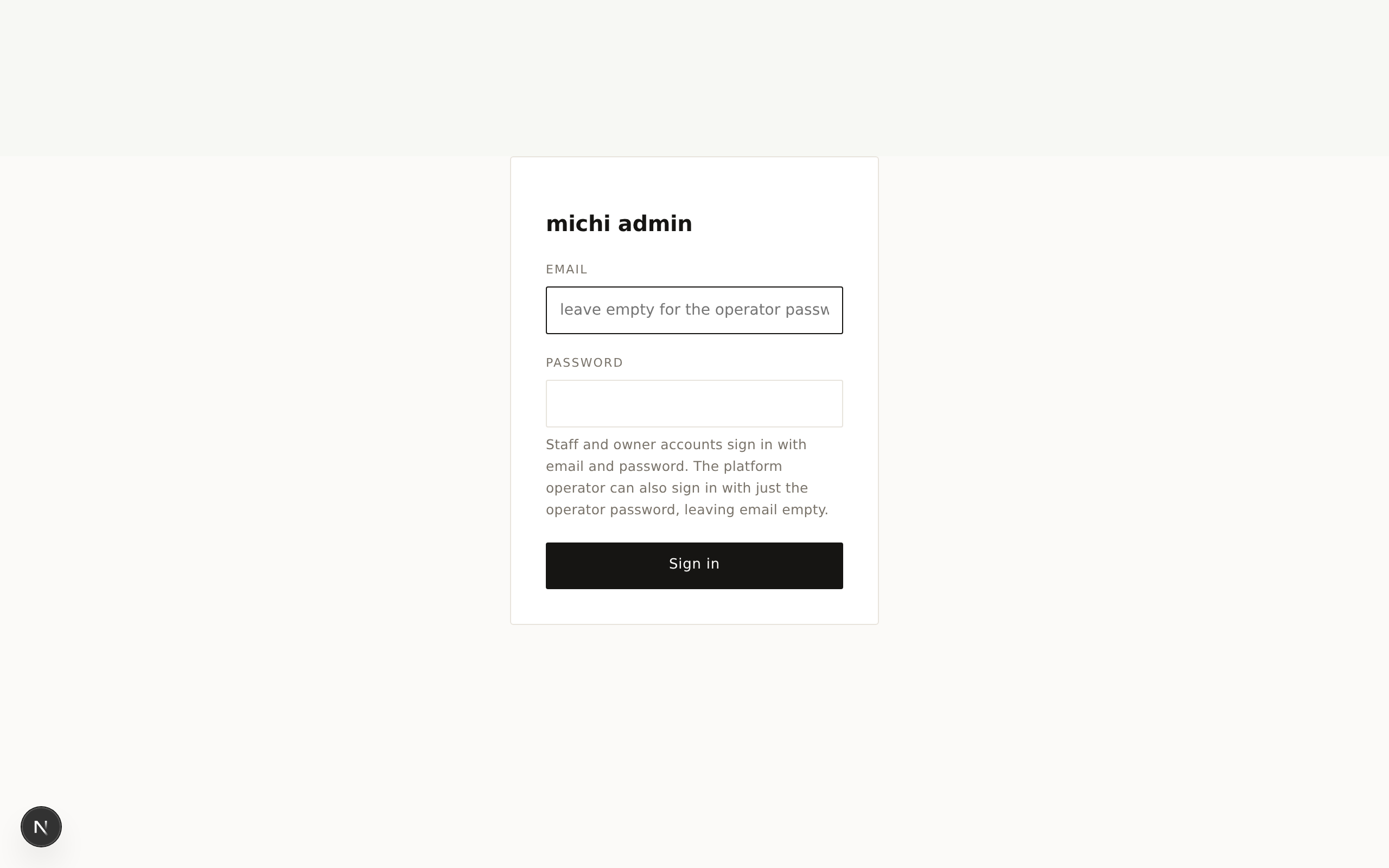
1. Sign in
Open /admin and enter the operator password.
2. Create your business
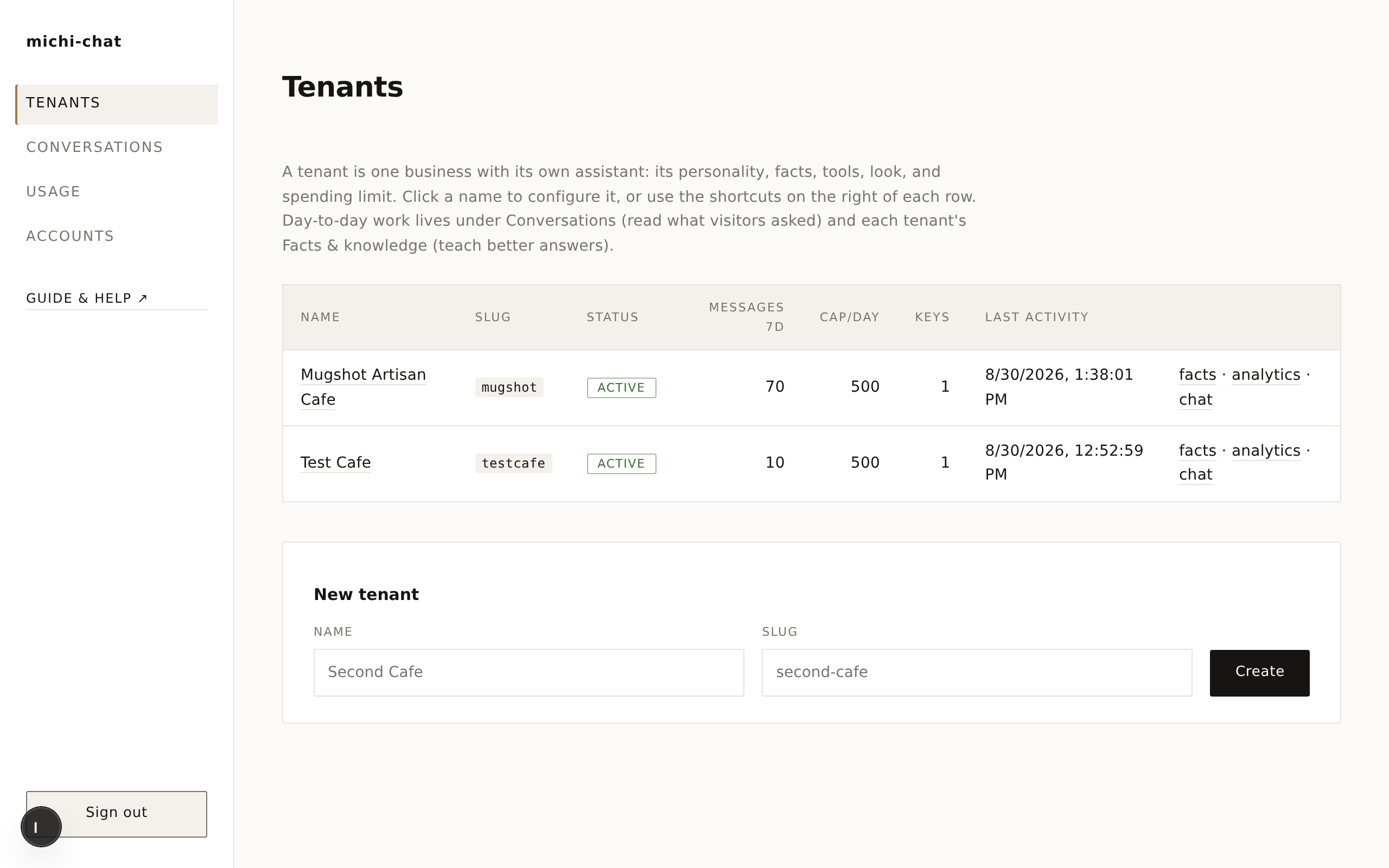
The dashboard lists every business on the platform. Fill in New tenant at the bottom - a name and a short web-friendly ID (the "slug", used in your chat address).
3. Fill in the profile
Click your business to open its settings page. Work top to bottom:
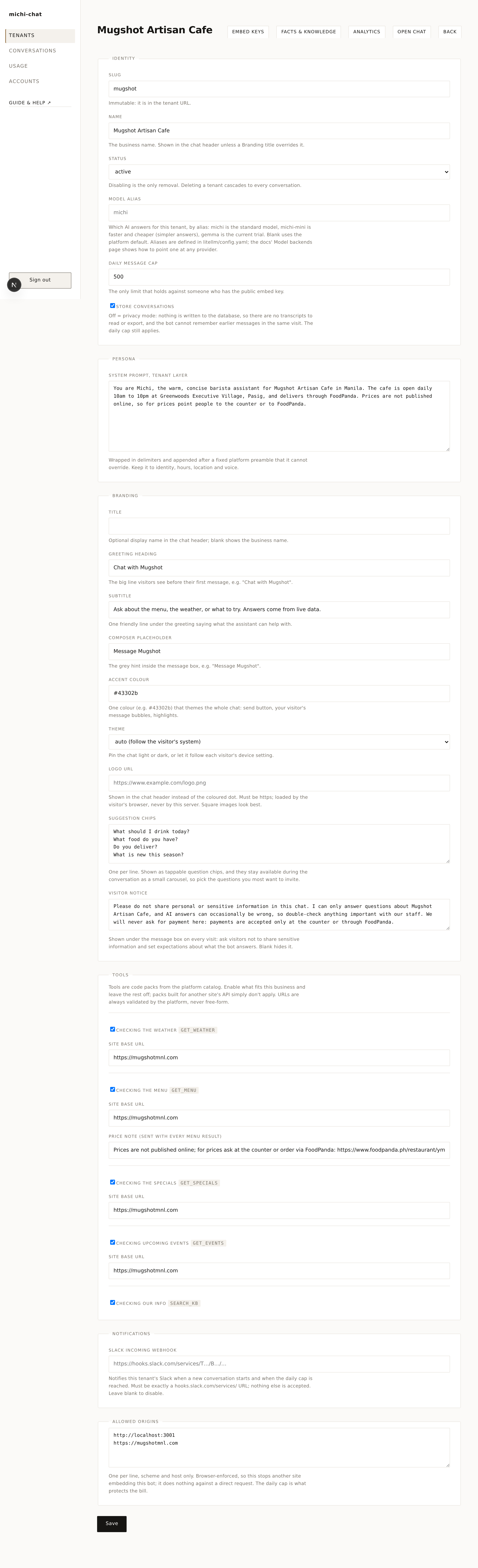
- Persona - describe who the assistant is, in plain words: your business name, location, what you sell, the tone to use ("warm and brief", "playful"). This is its personality, not its knowledge - facts come next.
- Branding - the title, greeting, colors, your logo (paste an https image URL) and the suggested questions visitors see. The suggestions stay available during the conversation as a small arrowed carousel above the message box.
- Visitor notice - the text under the message box. Use it for three things: ask visitors not to share sensitive information, say what the assistant covers, and state that you never ask for payment in chat (and where payment actually happens). That last line is real protection against impersonation scams.
- Tools - switches for live abilities (like reading your current menu from your website). Turn on search_kb so the assistant can use the knowledge you add in the next step.
- Daily message cap - the safety valve. Once a day's messages hit this number, the assistant politely stops until midnight. This is what makes the bill predictable.
- Notifications - paste a Slack webhook and you get a Slack message whenever a new conversation starts, and once if the daily cap is reached.
4. Teach it your facts
Open Knowledge base. Each document is a page of facts in your words - hours and location, frequently asked questions, policies. Use headings, keep one fact per section.
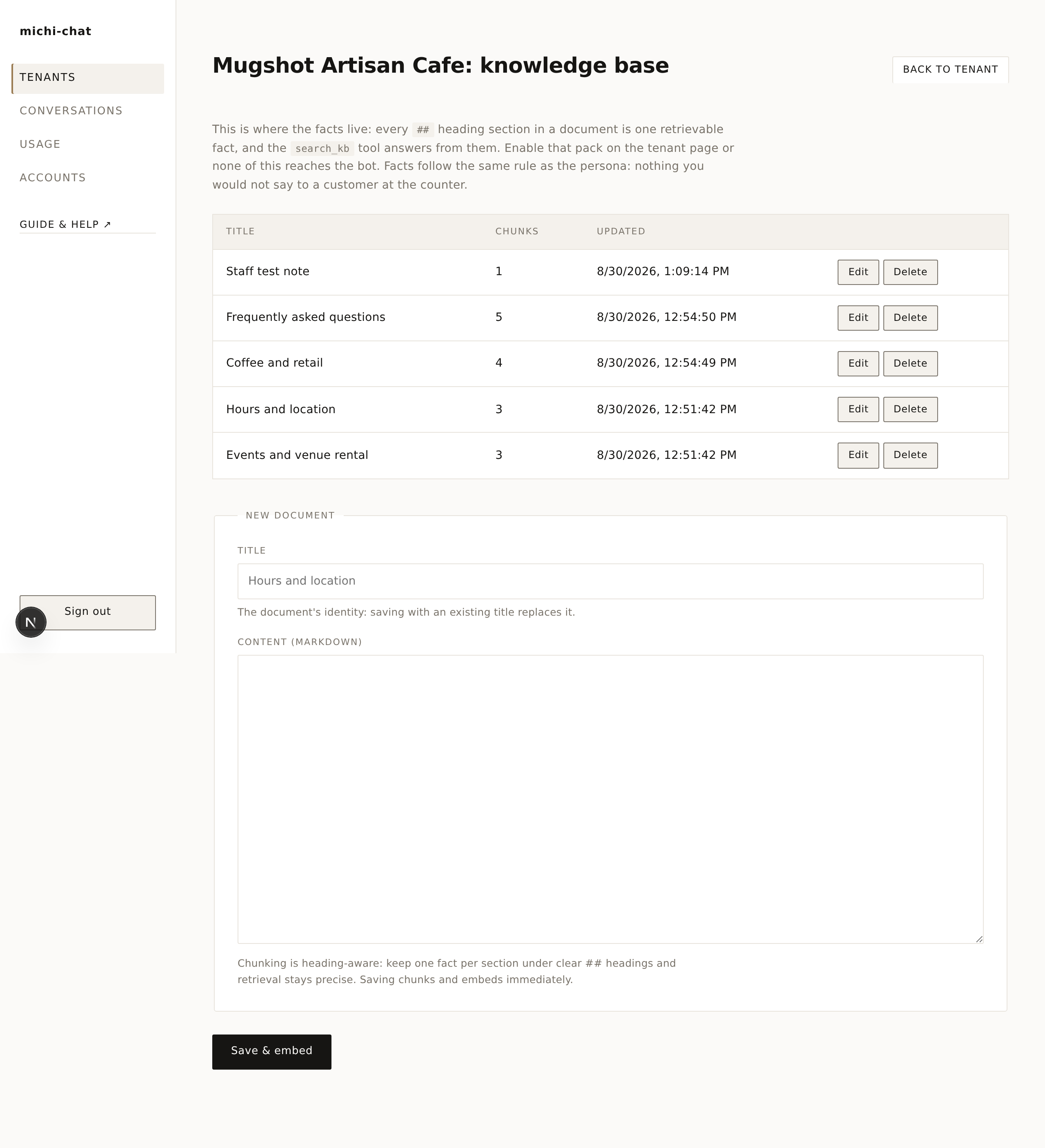
Click Save & embed and the facts are searchable immediately. Rule of thumb: only write what you'd happily say to a customer at the counter.
5. Put it on your website
Embed keys shows the key that identifies your business, and the tenant settings hold the Allowed origins - the list of websites permitted to embed your assistant.
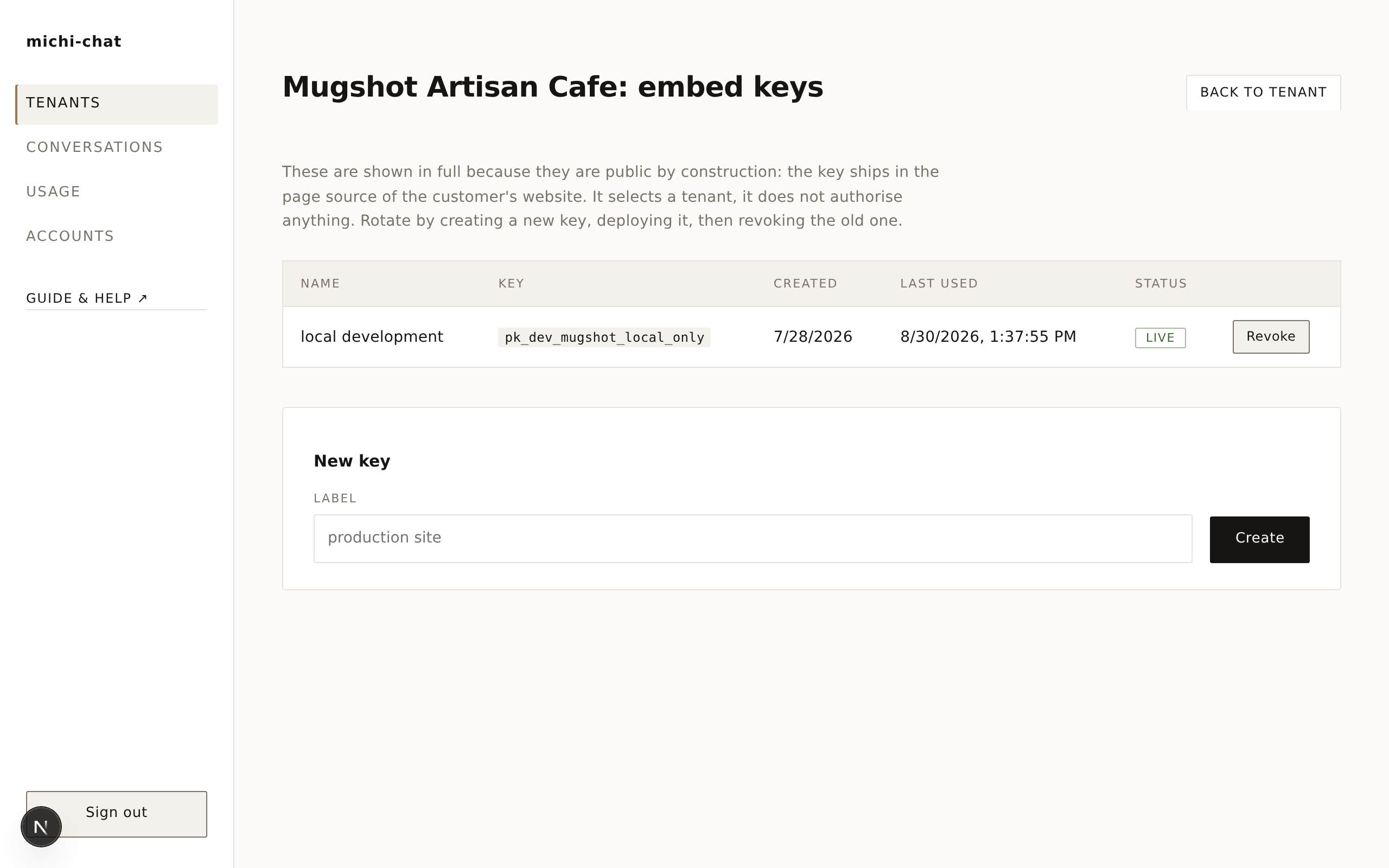
Your web person takes it from here: Embedding on a website has the copy-paste snippet.
That's it. Ask the assistant something you just taught it - then read Running it day to day.