
Turn a PDF into knowledge
Your facts probably already live in a PDF - a customer handbook, a policy sheet, an event flyer. The assistant can't read files, only the text in its knowledge base; this tutorial walks one real PDF from "attachment in your email" to "answers in your chat", and shows you what everything on the screen means along the way.
Ten minutes the first time, two minutes after that.
Before you start
- You can sign in to the admin and open Tenant → Knowledge base (staff accounts can do everything in this tutorial).
- You have a PDF where the text is selectable. Quick check: open it and try to select a sentence with your mouse. If you can't, it's a scan - photos of pages - and the importer will tell you the same thing. Re-export it from the original document, or plan to type the key facts by hand.
Step 1 - Analyze, which is free
On the Knowledge base page, find Import from a PDF, choose your file, and click Analyze PDF (free). The button says free because it is: no AI model runs. The platform reads the text out of the file and does the mechanical cleanup itself - repeated headers and footers, page numbers, table-of-contents dot lines all go, and it tells you what it removed.
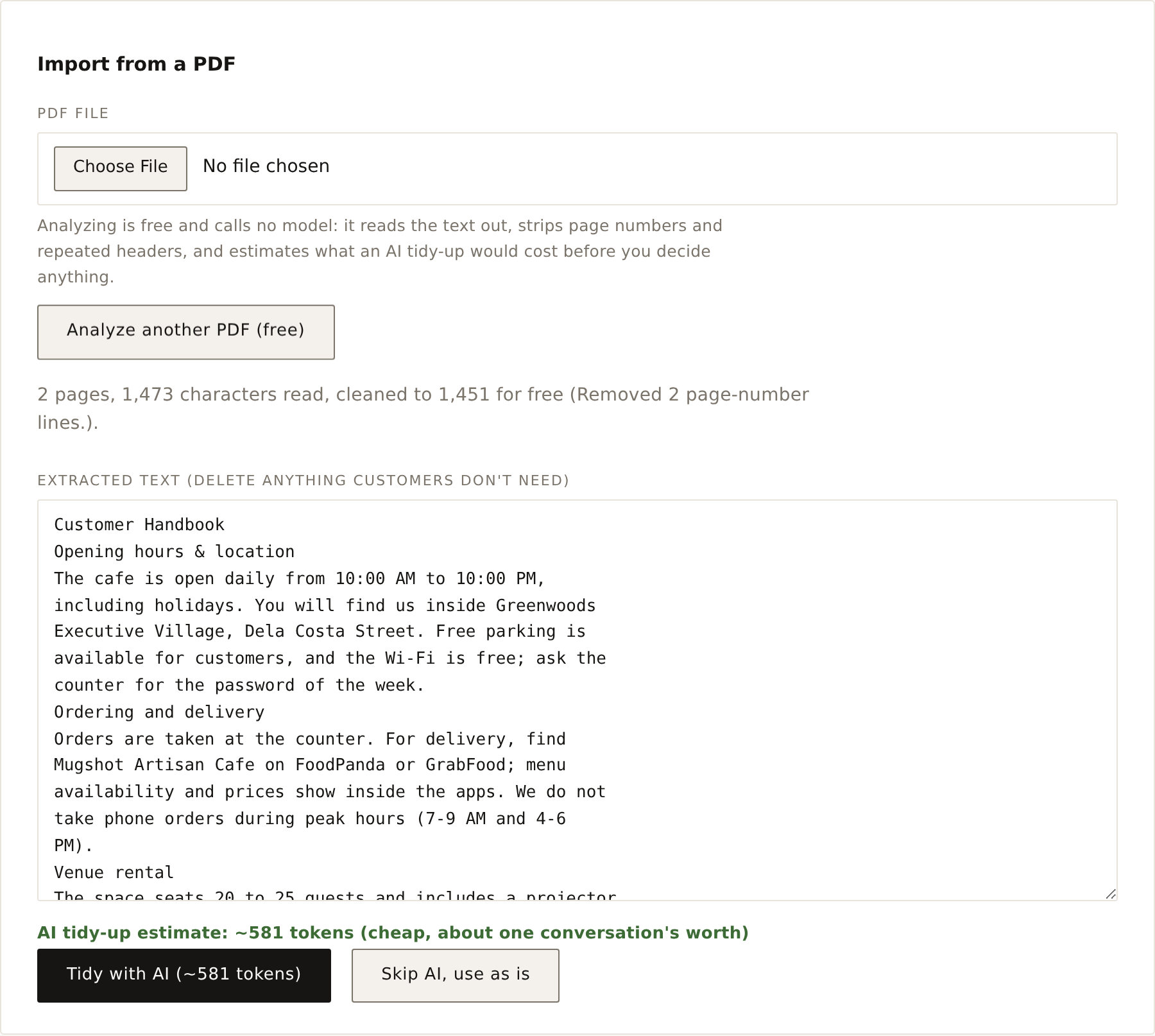
Reading this screen, top to bottom:
- "2 pages, 1,473 characters read, cleaned to 1,451 for free" - the size of your file as text, and what the free cleanup already saved. With a bigger, messier PDF this line is more dramatic ("Removed a repeated header/footer (40 lines)").
- Suggestions, when they appear, are specific to your file: a scanned PDF gets "the bot cannot read pictures", a price-table-heavy one gets "prices should come from the live tools", a very long one gets "split it into one import per topic". A small clean file gets no lecture at all.
- The text box holds everything that survived. It's editable, and that's the point.
- The green line is the cost forecast for the optional AI step. More on it now.
Step 2 - Read the forecast, trim if it says so
The estimate is a real prediction, not decoration: once the text is extracted, its length tells us the token cost of an AI pass before it runs.
- Green - "cheap, about one conversation's worth." A typical menu, flyer, or handbook lands here. Just proceed; the gauge is not asking you to do anything.
- Yellow - "noticeable, worth trimming first." Scroll the text box and delete the sections customers never ask about - legal boilerplate, internal notes, last year's promos. Watch the estimate shrink as you cut.
- Red - "too big for one pass, trim or split." Don't fight it: import topic by topic instead (hours in one document, policies in another). Retrieval prefers that shape anyway.
Here's the part that matters more than tokens: trimming isn't about the money. Everything you keep becomes searchable knowledge, and junk that survives - table fragments, footer noise, outdated promos - can come back in answers. A minute of deleting here buys better replies for months.
Step 3 - Tidy with AI, or skip it
The one paid step carries its price on the button: Tidy with AI (~581 tokens). Click it and the model reorganizes your text into short ## sections - one topic per heading, plain sentences - which is exactly the shape the assistant retrieves best. It rewrites structure, never facts: numbers, names, and hours stay as written, and anything unreadable is dropped rather than guessed.
If your PDF was already tidy, Skip AI, use as is does what it says and costs nothing.
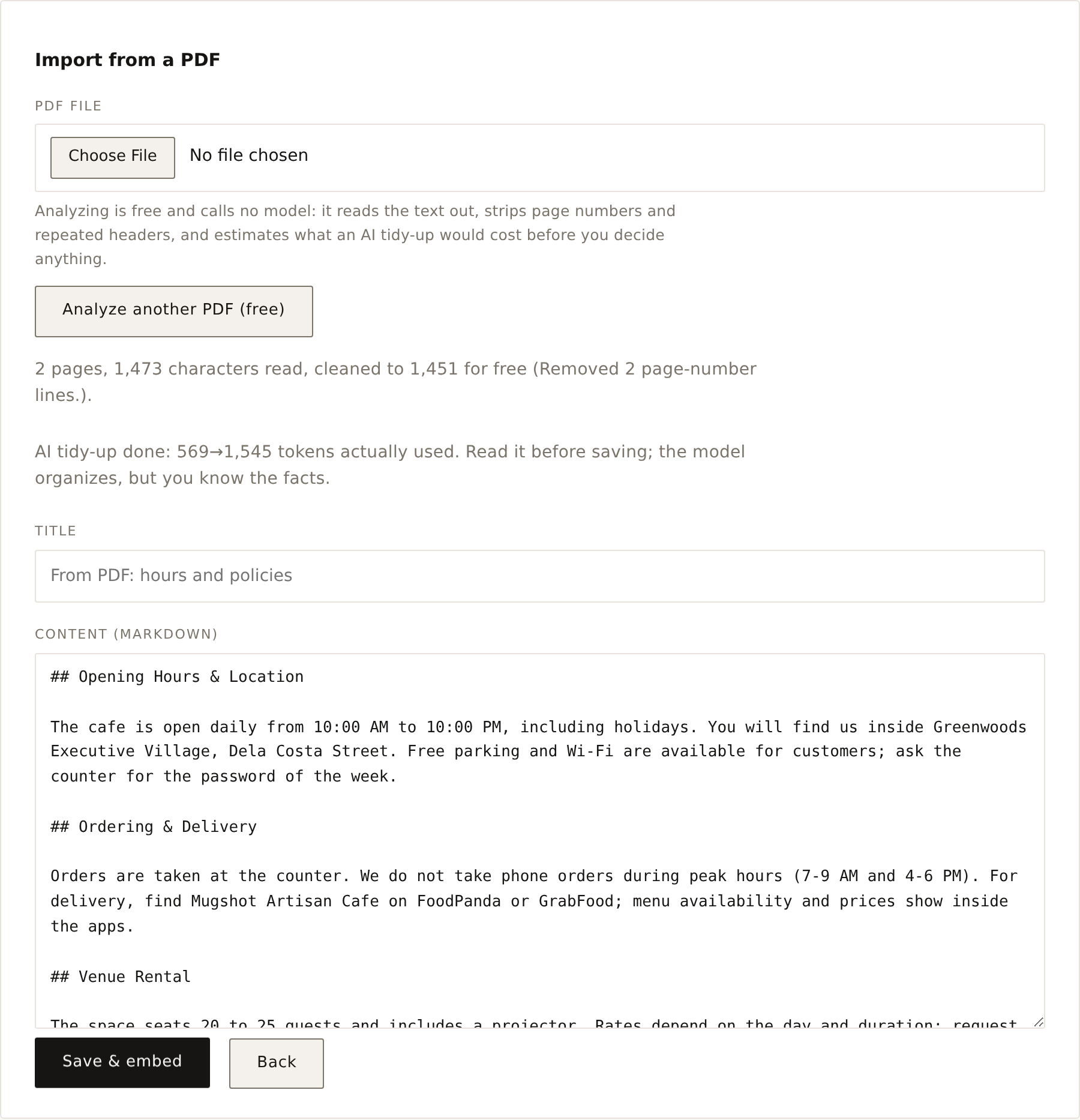
Notice the honesty line at the top: estimated ~581, actually used … - the forecast has to earn your trust on every run. And read the result before saving. The model organizes, but you know whether the veranda is really pet-friendly.
Step 4 - Save, then catch it in the act
Give it a title (saving with an existing title replaces that document), click Save & embed, and the content is chunked, embedded, and searchable immediately.
Now prove it works: open your chat page and ask something only the PDF knew - "can I bring my dog?", "do you take phone orders at 8 AM?". Then open that conversation in Conversations: the assistant's turn should carry a used tools: search_kb label, which is the knowledge-base lookup happening. That label system is explained on Running it day to day.
When something's off
- "No selectable text / looks scanned" - it's photos of pages. Re-export the source document as a PDF with real text, or paste the facts into a normal document.
- "Too much text for one AI pass" - delete more in the text box, or import in topic-sized pieces.
- The AI pass failed - usually the model backend having a moment; try again, or use Skip AI and tidy the headings yourself.
- A fact came out wrong or stale - it's a normal document now: open it under Knowledge base, fix the line, save. The answer cache clears itself on every knowledge edit, so corrections reach visitors immediately.
The reference version of all this, including the retrieval rules and the CSV bulk loop, is in Knowledge base.